 Fin
Fin
Start by navigating to your servers panel - from the dashboard. Click "Database" in the side view.
Next click "Create" in the top right corner
Name this something appropriate for what you need it for (recommended)
Clicking "View" on the database gives you more information as shown below
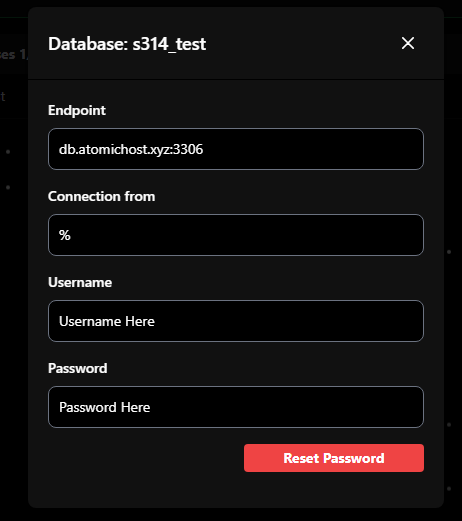
In this example, we can view the "Username" and the "Password" of the database.
Keep the "Connection from" to %
There may be a configuration file you may have to enter these details in to allow it to connect
After creating your database you should see something like the following:

In the example above,
"S314_test" is the database name
"db.atomichost.xyz" is the host
"3306" is the port
If you have any furthur questions, please open a ticket, our staff will support you.